Hey there! Ready to dive into the world of Podman containers using Visual Studio Code? Let’s get started with this easy-to-follow guide. 🌟
If you use the Flatpak version of VS Code on Linux, you have probably hit the classic snag: the editor is sandboxed, so it cannot see the Docker or Podman socket on your host the way a native install would. The Dev Containers extension assumes Docker is available, and it looks for a docker binary that is not there. The fix is a single path setting, and once it clicks, developing inside containers from a sandboxed editor works beautifully.
✅ Prerequisites
Before we begin, make sure you have the following:
- Visual Studio Code (flatpak version)
- Podman
⚙️ Configuration Steps
-
Install the Dev Containers Extension
- Open Visual Studio Code.
- Press
Ctrl + Shift + Xto open the Extensions view. - Search for and install the Dev Containers extension.
-
Configure Podman in VS Code
- Open the Command Palette by pressing
Ctrl + Shift + P. - Type
Dev Containers: Settingsand select it. - Find the
Dev > Containers: Docker Pathoption. - Replace
dockerwith/app/tools/podman/bin/podman-remotein the text box.
- Open the Command Palette by pressing
-
Open Your Project in VS Code
- With the configurations complete, open your project in Visual Studio Code.
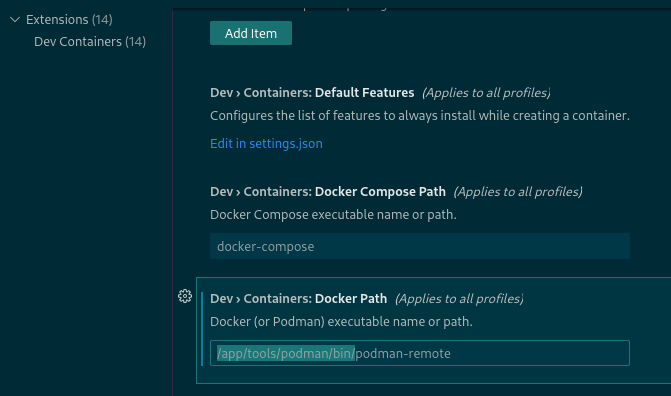
Fig. 1: Dev container option showing docker path
The path /app/tools/podman/bin/podman-remote is where the Flatpak sandbox exposes the Podman remote client. By pointing the Dev Containers extension at it, the editor stops looking for Docker and starts talking to Podman instead, with no other configuration required.
🧠 Final Thoughts
And that’s it! You’re all set to develop in Podman containers using Visual Studio Code. The whole trick was one setting, but it is the kind of setting that looks like a dead end until you know it exists.
A couple of practical notes: make sure Podman is running and reachable before you attach, and if your container needs access to host folders, double check the shared filesystem permissions in the Flatpak permissions dialog. Once the path is right, the sandboxed editor becomes just as capable as a native install, and you get to keep the nice, clean Flatpak environment. Happy coding! 🚀